





I Spent 24 Hours Mastering Video Editing with Filmora AI Features
In the world of content creation, voiceovers play a crucial role in enhancing engagement, storytelling, and accessibility. However, not everyone has the time, equipment, or voice confidence to record high-quality narration. This is where Wondershare Filmora’s Text into Speech AI feature comes in, revolutionizing how creators add voice to their videos with just a few clicks.
What is Wondershare Filmora’s Text into Speech AI Feature?
The Text into Speech (TTS) feature in Wondershare Filmora is an advanced AI-driven tool that converts written text into natural-sounding speech. Whether you’re a YouTuber, educator, marketer, or social media influencer, this feature simplifies the process of adding professional voiceovers to videos without the need for expensive recording equipment or voiceover artists.
Wondershare Filmora’s Text into Speech tool allows users to type out scripts and transform them into lifelike voiceovers in multiple languages, accents, and tones. This AI-powered feature ensures that creators can produce high-quality voice narration for their videos efficiently and effortlessly.
Why is Filmora’s Text into Speech AI a Game-Changer?
1. Ease of Use
Unlike traditional voice recording, which requires microphones, soundproof environments, and extensive editing, Wondershare Filmora’s Text into Speech AI makes the process seamless. Simply type your text, choose a preferred voice, and let the AI generate a high-quality narration.
2. Multiple Voice Options
Wondershare Filmora’s Text into Speech AI provides users with a variety of voice options, including male and female tones, different accents, and multiple languages. This ensures that creators can select the most suitable voice for their video content, whether it’s for tutorials, ads, explainer videos, or vlogs.
3. Time-Saving and Cost-Effective
Hiring voice actors or setting up a recording studio can be time-consuming and expensive. Wondershare Filmora’s Text into Speech feature eliminates these costs, allowing creators to generate voiceovers in seconds. This is particularly beneficial for businesses and content creators who need to produce videos regularly.
4. Natural-Sounding AI Voices
Unlike robotic-sounding TTS tools of the past, Wondershare Filmora’s AI-powered Text into Speech feature delivers high-quality, realistic voiceovers that sound natural and engaging. This enhances the overall production value of videos and keeps audiences captivated.
5. Supports Multiple Languages
For global creators, Wondershare Filmora’s Text into Speech function supports various languages, enabling content to reach a wider audience. Whether you need English, Spanish, French, Chinese, or other languages, this AI-driven tool ensures your message is delivered in the language of your choice.
6. Enhances Accessibility
Adding voice narration with Wondershare Filmora’s Text into Speech AI makes content more accessible to people with visual impairments or those who prefer listening over reading. This is particularly useful for educational videos, online courses, and audiobooks.
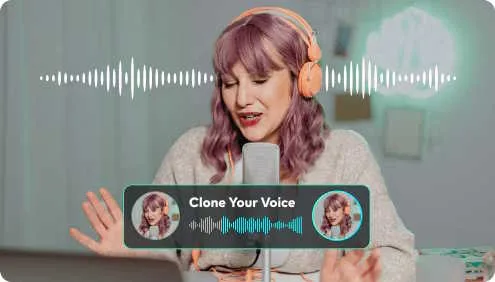
How to Use Wondershare Filmora’s Text into Speech Feature
Using Wondershare Filmora’s Text into Speech function is straightforward and beginner-friendly. Here’s a step-by-step guide:
- Launch Filmora: Open Wondershare Filmora and import or create your video project.
- Access the Text into Speech Tool: Type the text you want to convert into speech in the designated text box.
- Select Voice Preferences: Choose from a variety of AI-generated voices, including different tones, genders, and languages.
- Convert and Preview: Click the “Convert” button to generate the voiceover and preview how it sounds.
- Adjust and Fine-Tune: Modify pitch, speed, and emphasis to customize the voiceover according to your needs.
- Apply to Video: Once satisfied, add the AI-generated voiceover to your video timeline and synchronize it with your visuals.
- Export Your Video: After finalizing the edits, export your video in your preferred format and resolution.
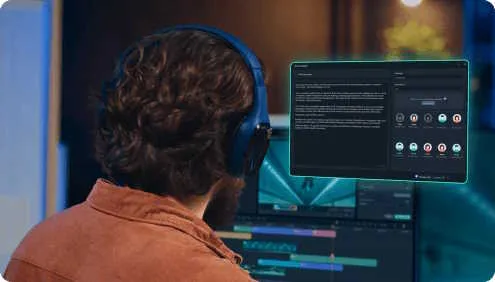
Best Use Cases for Wondershare Filmora’s Text into Speech Feature
Wondershare Filmora’s Text into Speech tool is versatile and can be used in various creative and professional settings. Here are some ideal use cases:
- YouTube Videos: Save time on voiceovers for tutorials, product reviews, or storytelling content.
- Marketing & Advertisements: Generate professional voiceovers for promotional videos without hiring a voice actor.
- Educational Content: Create engaging e-learning materials, training modules, and online courses.
- Social Media Posts: Enhance Instagram, TikTok, and Facebook videos with compelling narration.
- Corporate Presentations: Add voiceovers to business presentations for better engagement.
- Podcasts & Audiobooks: Convert text into speech for spoken-word content without recording equipment.
Why Choose Wondershare Filmora for Text into Speech?
Among numerous video editing tools available today, Wondershare Filmora stands out for its AI-powered simplicity, affordability, and high-quality output. Unlike complicated text-to-speech software, Wondershare Filmora integrates Text into Speech AI directly into its video editing suite, making the entire process seamless and efficient.
Key Advantages:
- User-Friendly Interface: No technical skills required—perfect for beginners.
- Affordable Pricing: Get premium features without breaking the bank.
- Regular Updates: Wondershare Filmora continuously enhances AI capabilities for better voice quality.
- All-in-One Solution: Beyond Text into Speech, Filmora offers advanced video editing, AI effects, and more.
Final Thoughts
Wondershare Filmora’s Text into Speech AI feature is a game-changer for content creators looking for an easy, fast, and cost-effective way to add high-quality voiceovers to their videos. Whether you’re making YouTube videos, educational content, or marketing materials, this AI-powered tool ensures professional-grade narration with minimal effort.
If you’re ready to take your video editing to the next level, explore Wondershare Filmora’s Text into Speech feature and transform the way you create voiceovers today!
About Wondershare Filmora
Launched in 2015, Wondershare Filmora is designed with its user in mind, featuring smoother performance and an intuitive user interface, and has attracted a cumulative global user base of nearly 300 million across 150+ countries and regions.With advanced AI features boosting content generation and editing, over 2.3 million creative assets, commercially available music, 3D LUTs, effects, and pre-set templates, Filmora stands out as a leader in video editing software. Consistently introducing innovative tools, it enhances video creation and makes the process more efficient and accessible for all skill levels.
About Wondershare Technology
Wondershare is a globally recognized software company founded in 2003, known for its innovative solutions in creativity and productivity. Driven by the mission “Creativity Simplified”, Wondershare offers a range of tools, including Filmora, Virbo, and DemoCreator for video editing; PDFelement for document management; EdrawMax, EdrawMind for diagramming; and SelfyzAI, Pixpic, FaceHub for image recovery and editing. With over 1.5 billion users across 200+ countries and regions, Wondershare empowers the next generation of creators with intuitive software and trendy creative resources, continually expanding the possibilities of creativity worldwide.