




About Box and Dropbox
In recent years, cloud storage has become an important part in our digital life. Why? Local disk space only allows you to access files when you have the physical device. Cloud storage services allow you to access files anytime and anywhere as long as you have an Internet connection.
Box and Dropbox are both famous cloud storage services, and have some differences between them. Box provides 10GB of free cloud space while Dropbox provides 2GB of free cloud space. Box is mainly designed for Business users, while Dropbox is designed for both personal and Business users.
If you happen to have both accounts for Box and Dropbox, and are trying to move files from Box to Dropbox, you’re in the right place.
Why Migrate Files from Box to Dropbox?
You might move Box to Dropbox due to the following reasons:
- Dropbox is easier to use than Box. Dropbox provides an intuitive interface for you to sync and share files effortlessly.
- Faster Sync. Dropbox provides block-level sync while Box provides file-level sync, so Dropbox is faster than Box when syncing files.
- Flexible Integration. Furthermore, Dropbox often takes the lead in its integration ecosystem for creative and personal productivity tools.
- Affordable for Personal Use. Dropbox provides more options for personal use, while Box is better for business use.
No matter what the reason is, you have ways to migrate Box to Dropbox easily. Learn more from the part below.
Best Free Box to Dropbox Migration Tool – MultCloud
Fortunately, here comes the powerful multiple cloud storage manager – MultCloud for help. It’s an exclusive cloud data migration tool, which allows you to move files from one cloud to another directly.
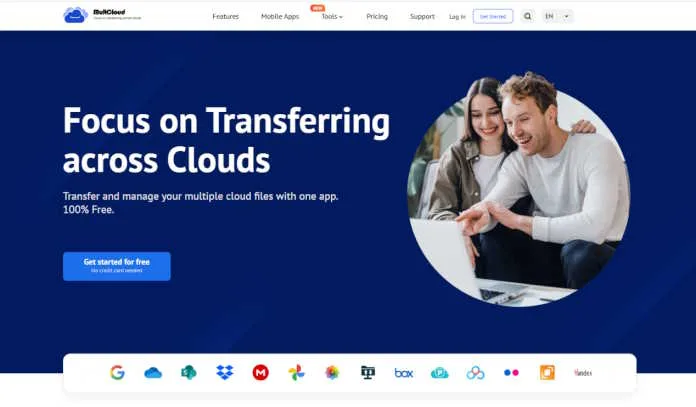
MultCloud provides the following strengths while migrating Box files to Dropbox:
- Direct Move. You can migrate files from Box to Dropbox directly without downloading files manually.
- Powerful Functions. It offers different functions for you to move files between clouds, such as cloud to cloud backup, sync, and transfer, team transfer, share, copy to, and many functions.
- 40+ Clouds. It supports Google Drive, Google Photos, OneDrive, Dropbox, Box, SharePoint Online, Gmail, Outlook, MEGA, MediaFire, pCloud, ownCloud, Wasabi, WebDAV, NAS, FTP/SFTP, etc.
- Flexible Selection. You can choose everything or selected items from one cloud to another as you like.
- Strong Security. It deploys 256-bit AES encryption and a standard OAuth authorization system to safeguard your files.
So, how to migrate from Box to Dropbox directly with MultCloud? Try the full guide listed below.
How to Transfer Files from Box to Dropbox Quickly
As the best free Box to Dropbox migration tool, MultCloud simplifies the data migration between clouds. You can learn how to make it now with simple guide:
-
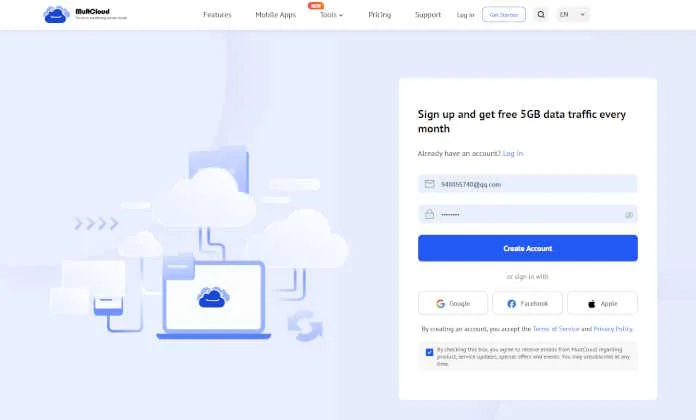
- First things first, you’ll need to sign up for a MultCloud account. Then log in to your MultCloud account.
-
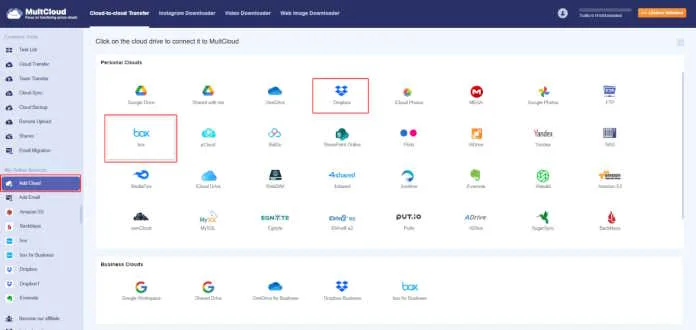
- Click Add Cloud > Box, then follow the guide to grant access to MultCloud. Then add Dropbox accordingly.
-
- Select Cloud Transfer from the left panel, then choose Box files as the source and a location in Dropbox as the destination.
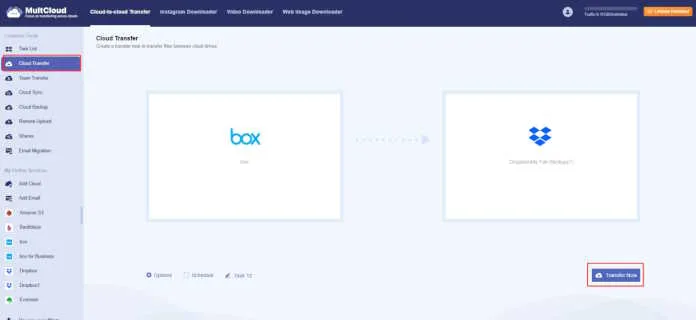
- Configure settings and hit Transfer Now to start the Box to Dropbox migration.
Setting Tips before transferring:
- Configuring Options is the best way to set up transfer methods, email and filter. You can also use filter to choose certain files to transfer.
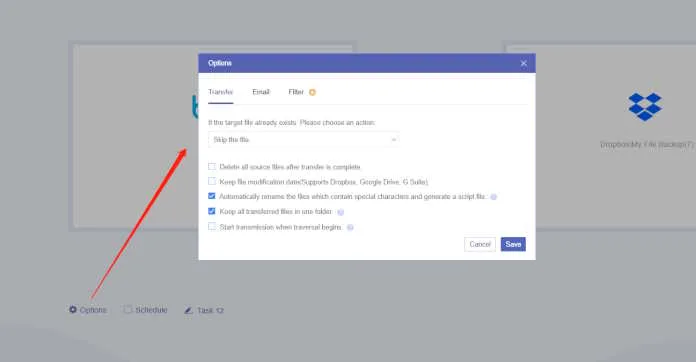
- Setting up Schedule is very easy and help you to transfer files automatically.
- Enjoy all premum features after upgrading, including Filter, Schedule, faster transfer speed and many more.
MultCloud will begin the transfer from Box to Dropbox on its servers. You’ll see the task listed under “Task List,” where you can monitor its progress. Remember, since it’s a server-side transfer, you don’t need to keep your browser open or your computer on. MultCloud handles everything in the background.
The End
Making the switch from one cloud storage provider to another, particularly when you need to migrate from Box to Dropbox, might seem like a daunting task. Fortunately, you can use MultCloud to simplify the process.
Besides, you can download videos from Instagram, Facebook, X, YouTube, and 1,000+ sites directly, sync files in real time, archive Gmail emails with all attachments, etc. So, why not give it a try now?