




A lot of Android users end up running into the Google verification screen after they restore their mobile to its defaults. That usually happens when they forget to remove the logged-in Google ID from the phone beforehand. This surprising step is fine as long as you have the right credentials. Otherwise, users of phones from brands like Huawei can get stuck on this screen forever. That is where this guide comes to your aid by introducing a robust Android phone unlocker to resolve this dilemma. It will explore the best Huawei FRP bypass tool in detail to help calm panicked users. Read on to discover the guide to regain access to your locked mobile.
Part 1. Huawei Users Locked Out by FRP? You’re Not Alone
A large number of users find themselves stuck on the verification screen after erasing their phone. Most of the time, they don’t even know what they did wrong. While the FRP bypass process is vital in such scenarios, a better understanding of the situation is also important. It’s a common problem that catches many by total surprise. That mostly happens when buying a second-hand smartphone or losing the account credentials.
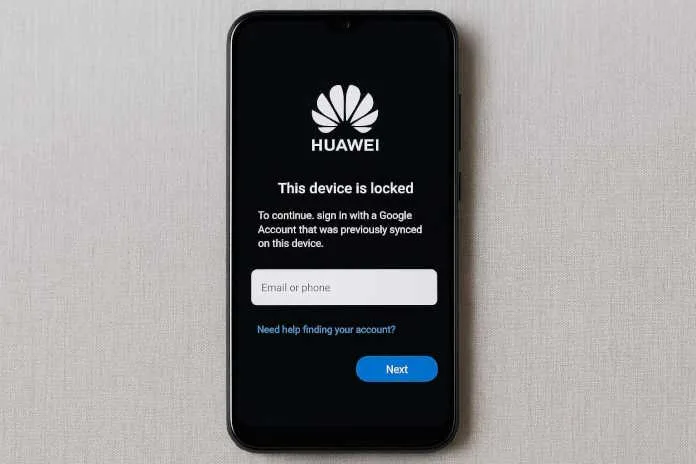
Huawei’s Factory Reset Protection is a function designed to secure your mobile against unwanted access in case of theft. As for its working, the system requires you to log in using the last synced Google account after a complete reset. While the purpose of FRP is to protect the phone, it can become a major obstacle for legitimate users. For many, the screen saying “Verify your account” is a dead end.
The reason for this case is that as long as the verification screen is not resolved or bypassed, the mobile is useless. This situation is especially challenging for people who have no idea of such advanced functions. Not to mention that trying different login attempts or searching random fixes online can waste hours and often doesn’t work. All of this forces many to look for a robust Huawei FRP tool.
Part 2. Why Conventional FRP Removal Methods Often Fail?
Before you dive into an approach to fix the problem, it is vital to know if the selected fix will work. Most conventional methods available online do not work for Huawei phones and can leave them bricked. Many users go through trial-and-error with outdated tips, only to end up confused. Here are some reasons why trying such FRP bypass approaches does not solve the issue:
1. Manual Techniques Are Too Complicated
A lot of manual solutions involve long sequences of steps ranging from using hidden menus and emergency dialers to installing APKs. These steps often change across Android versions and don’t work on updated Huawei models.
2. Flashing Firmware Can Void the Warranty or Brick the Phone
Trying to flash custom versions of the OS can sound promising, but one wrong step can result in a disaster for the mobile. It can result in a bricked device, making the phone completely useless. Not to mention that even if flashing is successful, the warranty will be voided.
3. You Need Technical Knowledge Most People Don’t Have
Some guides assume you’re comfortable with tools like ADB commands or bootloader unlocking. For the average user, they are not only unfamiliar but also really intimidating and risky.
4. Online Tools Are Often Fake or Harmful
Many web options claiming to remove the Google lock for free are either outdated or filled with ads. Not to mention that a lot of them are downright scams or bundled with malware. Most rarely work as claimed and can end up compromising the device.
5. No Guarantee of Success Across All Huawei Models
Even if a method actually works on one device, there is no guarantee at all that it will be effective for your mobile. Many such approaches are specific to certain Android OS iterations and security patches.
Part 3. Dr.Fone – The Most Reliable Huawei FRP Tool in 2025
Instead of wasting time on solutions that will or won’t work, the best thing to do is to find a reliable Android phone unlocker. Due to the risks associated with the failed approaches, many users turn to trusted software that does the job with ease. One such solution that stands out for its robust FRP removal capabilities is Dr.Fone – Screen Unlock (Android).
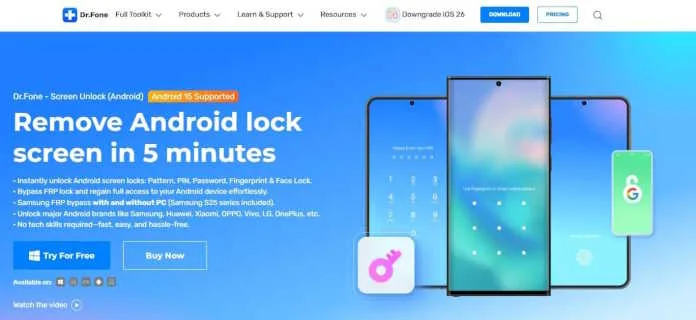
It removes the stress and guesswork from the task of getting rid of the Google lock and makes the operation a breeze for most users. Dr.Fone guarantees that there are no risks to your Huawei mobile during the procedure. Another major factor behind its success is its support for all Android firmware versions currently running on Huawei devices. The process is fully guided and doesn’t involve unknown APKs.
Much more importantly, the phone stays intact with no malware installed, and your privacy remains unbreached. Along with FRP bypass, it also works on removing forgotten screen locks from 2000+ Android smartphones. For specific Samsung and LG mobiles, no content is lost during the unlocking operation. Other supported brands for screen unlock range from Xiaomi and Nokia to OPPO and OnePlus.
Part 4. Step-by-Step Guide for Huawei FRP Bypass
When you finally decide to run the Google lock removal operation, you will find it straightforward with Dr.Fone. No tech skills, external applications, or specialized cables are needed for this procedure. All you need is a locked Huawei mobile, a working USB cable, and this Android phone unlocker installed on your system. Once ready, opt for the following guide:
Step 1. Run the Android Phone Unlocker and Access Screen Unlock
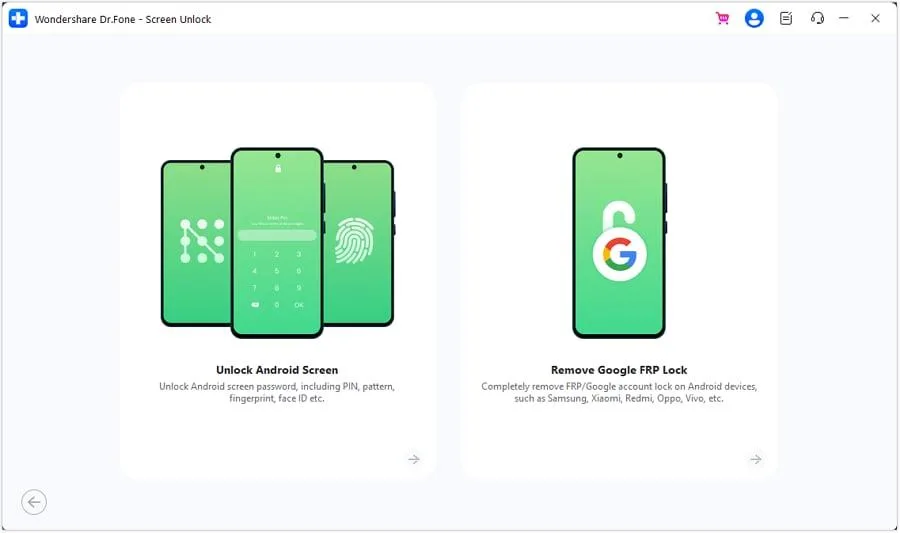
As you get Dr.Fone going on your computer, head over to the “Toolbox” section to find the “Screen Unlock” option. Then, proceed by selecting “Android” and tapping the “Remove Google FRP Lock” feature.
Step 2. Pick Huawei and Follow the Given Prompts
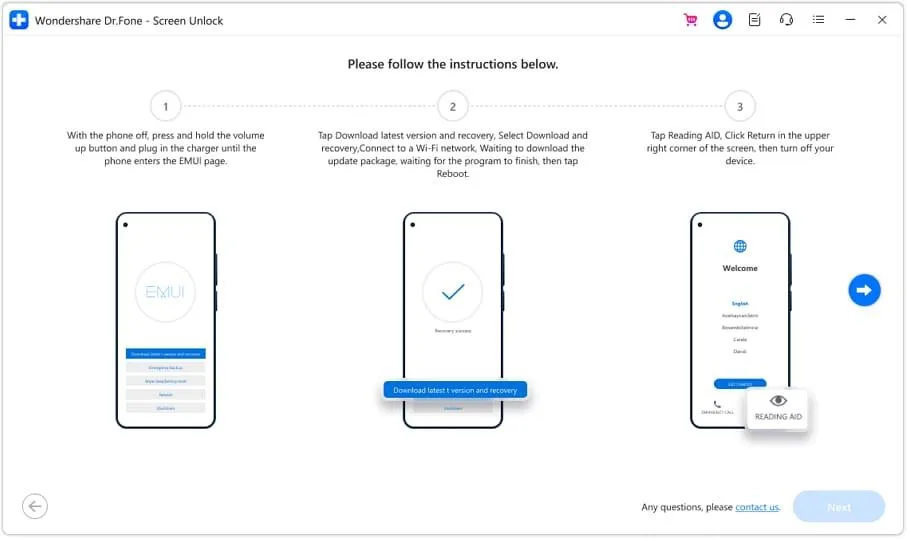
Next, select “Huawei” from the supported brand list and carefully follow the instructions shown to open the “EMUI” interface. With the steps done, restart the mobile and re-enter the “EMUI” section as directed.
Step 3. Complete the FRP Removal Operation and Restart Your Huawei
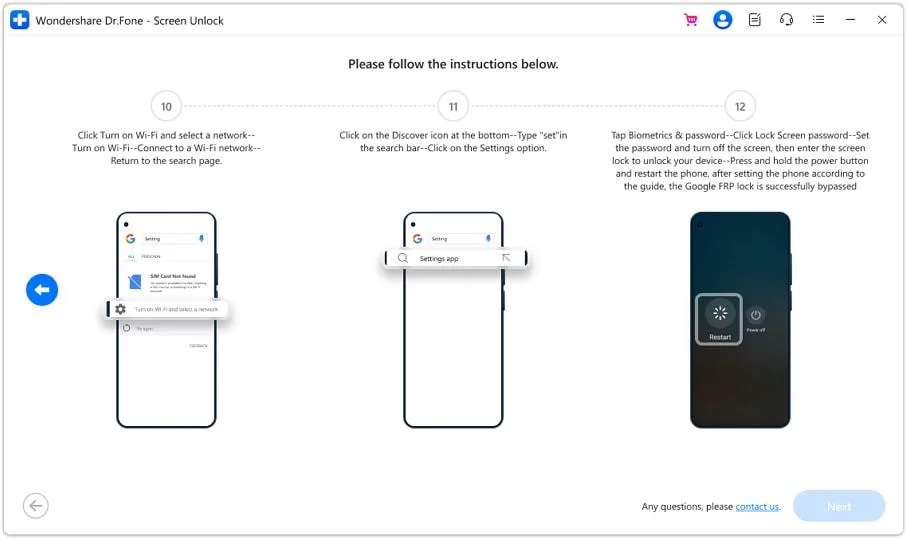
After that, access the “Emergency Backup” mode and continue by following each step provided to disable the FRP lock. Once the process is completed, reboot the Huawei phone to finalize everything.
Conclusion
In summary, the FRP lock on your Huawei phone after a factory reset can feel like hitting a wall. While many traditional methods promise a fix, most are either too complex or risky. Not to mention that they are also simply ineffective on newer devices. That’s why choosing a reliable tool for FRP bypass makes all the difference.
Dr.Fone – Screen Unlock (Android) offers a smarter, safer way to bypass the FRP screen and regain full access. With wide device support and no bricking risks, it’s the go-to Android phone unlocker for most Huawei mobile users.