




You don’t realize how many things go wrong with Word documents until you stop using them to send your final work.
Seriously. It’s only when you try a Word to PDF conversion for the first time and share it that you notice… no font changes, no broken tables, no random margin shifts. It just works.
That’s because Word files are built for editing, not sharing. Word to PDF tools like WPS fix that by turning your document into something that’s ready for viewing, printing, and presenting—flawlessly.
If you’ve ever asked, “Why did my doc look fine on my laptop but broken on theirs?”—this article is for you.
Why You Need a Reliable Word to PDF Converter
The process of converting Word to PDF may appear to be an easy one. However, the bad tool may sometimes create more issues than it resolves, presenting you with watermarks, ruining the layout, necessitating sign-ups, or restricting the amount of files you may convert every day.
This is why it is important to select the appropriate tool. By 2025, working hybrid, writing papers, and freelancing are all thriving, so you require a converter that will simply do its job on any device and without any trade-offs.
What Makes a Good Word to PDF Converter?
Before diving into comparisons, let’s set the standard. A good converter should:
- Keep formatting exactly as is.
- Work without installing extra software
- Avoid adding watermarks
- Be mobile-friendly
- Process files quickly and securely
- Support .doc and .docx formats
- Respect your privacy (no file retention or tracking)
Now let’s see how the most popular tools stack up.
Comparison Table: WPS vs. Other Popular Tools
| Feature | WPS Word to PDF | Adobe Online | Smallpdf | Google Docs |
| Free to use | Yes | Limited | Limited | Yes |
| No watermark | Yes | Yes | No | Yes |
| Requires account? | No | Yes | Yes | Google login |
| Mobile support | Full | Basic | Inconsistent | Good |
| Keeps formatting | Reliable | Mostly | Inconsistent | Often breaks |
| File size limits | None | Up to 100MB | 50MB or less | Struggles |
| Cloud upload needed? | No | Yes | Yes | Yes |
| Conversion speed | Instant | Moderate | Varies | Slow with images |
| Privacy/auto deletion | Yes | Partial | Partial | Files stay on Drive |
Why WPS Is the Smartest Choice
Let’s break down why WPS stands out—not just for what it does, but how smoothly it does it.
1. No Watermarks or Hidden Limits
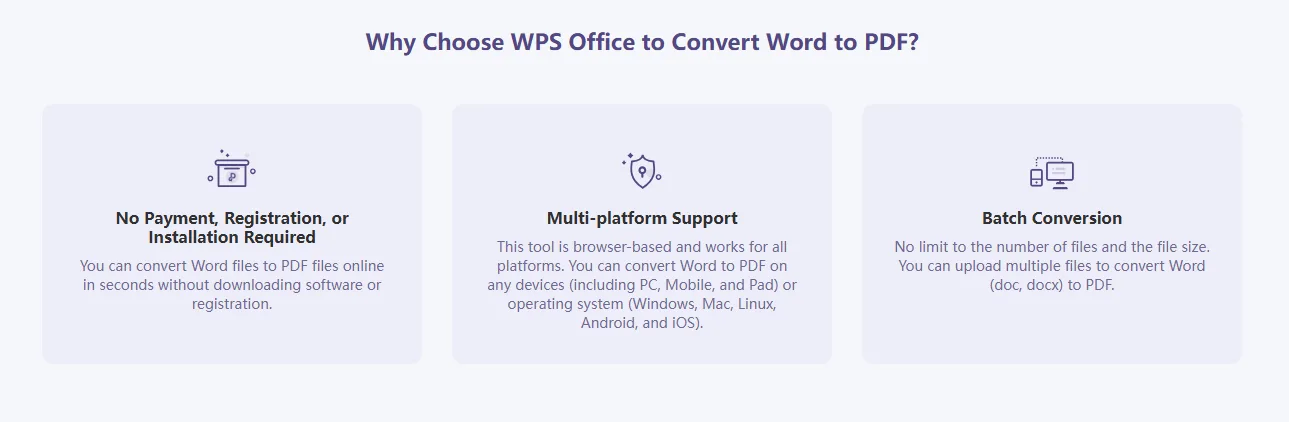
Many “free” tools place watermarks on your converted files, making them unusable for resumes, proposals, or schoolwork. WPS never does this—even for free users. Your document looks clean, professional, and unbranded.
2. No Sign-Up, No Downloads
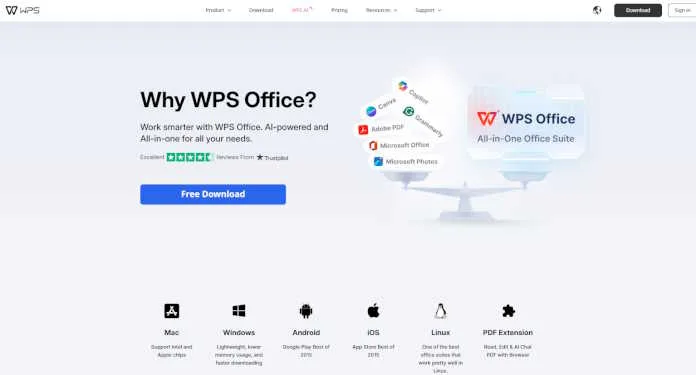
No one wants to create an account just to convert a file. WPS lets you convert instantly, straight from your browser. No login. No installations.
It’s also fully compatible with:
- Windows
- Mac
- Android
- iOS
- Chromebook
- Any modern browser
3. Preserves Your Formatting—Exactly
Fonts, page breaks, line spacing, images, charts—everything stays locked in.
Other tools sometimes shift paragraphs, break lists, or rewrap headings. WPS ensures your document looks identical in PDF as it did in Word.
4. Ultra-Fast Conversion
Time matters. WPS processes your file in seconds. Upload, click Convert, and download—done.
You don’t need to wait for email confirmations or progress bars. It’s immediate, even for multi-page documents.
5. Privacy You Can Trust
WPS respects your data. Files are deleted after processing—no backups, no snooping, no hidden retention. You’re not forced to link a cloud account or upload to a shared server.
It’s ideal for:
- HR forms
- Legal contracts
- Student submissions
- Financial reports
The Verdict: WPS Wins on All Fronts
While other tools might do the job some of the time, WPS delivers every time—with zero fuss, zero branding, and full control.
Why users prefer WPS Word to PDF:
- No email required
- No watermarks
- Works on any device
- Keeps layout perfect
- Private and secure
- Totally free
If you’re converting files regularly—or just want your work to look the way you intended—this is the tool to rely on.
Final Thoughts: It’s Not Just Conversion—It’s Clarity
Choosing the right Word to PDF converter might seem minor. But when the format is wrong, the stakes feel bigger:
- A resume that doesn’t render correctly
- A report that looks broken in front of a client
- A professor marking you down for layout issues
- A form that prints off-center
Why take the risk?
Use WPS Word to PDF and take control of how your documents appear.
Fewer errors. Cleaner files. Happier recipients.