





Want to make a cinematic music video but don’t have fancy cameras, lights, or a big budget? Don’t worry—you can still create amazing visuals using your phone and CapCut on your PC. Whether you’re a musician, content creator, or love making videos, CapCut has everything you need to bring your vision to life—for free!
In this blog, you’ll learn why CapCut Desktop Video Editor is a powerful tool for creating cinematic music videos, its AI tools’ magic, such as AI Video Generator, and get a simple 3-step guide to help you get started today. We’ll also share helpful tips to make your music video feel like a movie, even if you’re working with zero budget.
Why Use CapCut to Edit a Cinematic Music Video With Zero Budget?
CapCut Desktop Video Editor is a free, user-friendly software that’s full of useful tools. It’s a great choice for anyone who wants to create professional videos for free. Here’s why CapCut is ideal for creating cinematic music videos on a budget:
1. Free Access to Pro-Level Features
CapCut includes tools like color grading, slow motion, cinematic filters, transitions, Voice Changer, and more. These are the kinds of features you’d normally find in expensive editing software, but with CapCut, you get them all for free.
2. Built-In Effects and Filters
Using CapCut’s filters and effects, you can easily give your video a cinematic vibe. Think moody tones, dreamy transitions, and cool overlays—no plugins or downloads are needed.
3. AI Tools for Faster Editing
CapCut Desktop Video Editor offers amazing tools like Text to speech, auto-captions, and background removal. These features can save you hours of editing time and help you focus more on the creative part.
4. Works on Any PC
You don’t need a high-end computer to use CapCut Desktop Video Editor. It runs smoothly on most Windows or Mac devices, which makes it super beginner-friendly.
3-Step Guide: How to Create a Cinematic Music Video Using CapCut
Creating a music video without any fancy gear and premium software might seem difficult, but CapCut makes it simple. Follow this three-step guide to turn your video clips into a cinematic masterpiece.
Step 1: Gather and Import Your Footage
Start by recording your video clips using a smartphone or camera. Focus on the emotion or story of the song. You can shoot in natural light, like during golden hour (early morning or before sunset), to make your shots look more cinematic.
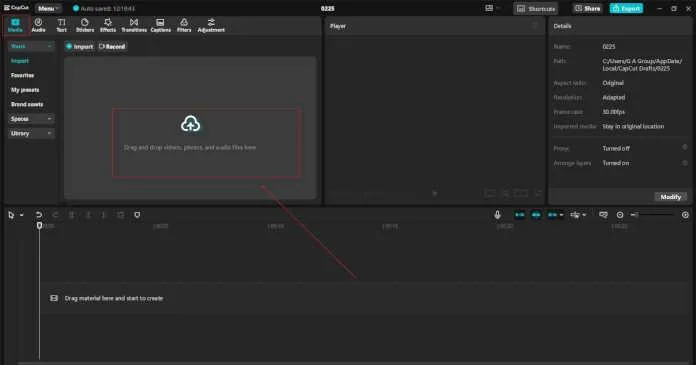
Then, open CapCut on your desktop and import your footage:
- Click “Import” to upload your video and music files. Drag the clips to the timeline to start editing.
Tip: Use a tripod or stack of books to keep your shots steady. You can also shoot in slow motion to make scenes feel more dramatic.
 Step 2: Add Music and Sync the Clips
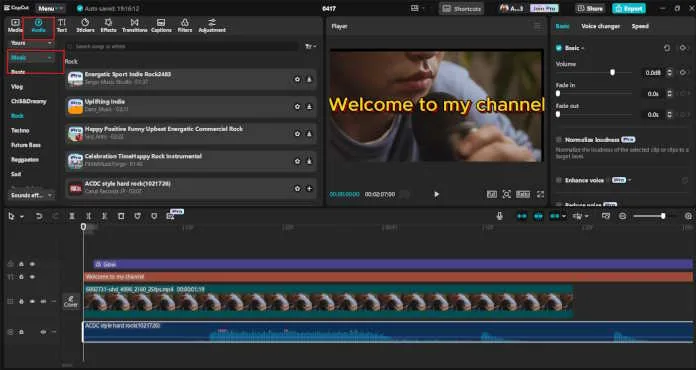
Drag your music track into the timeline and start syncing your video clips to the beat. CapCut makes it easy to align transitions with the music using visual sound waves.
Use these tools to bring your video to life:
- Speed Curve: Create slow-motion or speed-up effects that match the rhythm.
- Transitions: Use cinematic transitions like fade, zoom, and whip to move between scenes smoothly.
- Filters: Apply a moody filter to match the vibe of the song.
 Step 3: Fine-Tune With Cinematic Effects
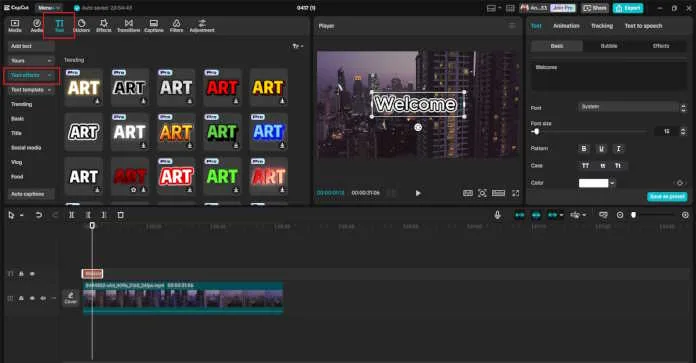
Now it’s time to fine tune your video:
- Color Grade: Use CapCut’s color tools to adjust brightness, contrast, and saturation.
- Add Text: Insert stylish titles or lyrics using animated text effects.
- Overlays: Add grain, light leaks, or lens flares to make it feel more like a movie.
Once you’re happy with the look and feel, export your high-quality video and share it online!
Tips to Make Your Cinematic Music Video More Engaging
Even if you’re working with no budget, a few wise choices can make your music video feel high-end. Try these tips to take your video to the next level:
1. Plan Your Shots Ahead of Time
Take a paper and think about the mood of your song and write down a few ideas. The results will be amazing and help you stay organized and shoot only what you need.
2. Use Natural Lighting
Shooting during golden hour or in places with soft, natural light gives your video a professional look without the need for lights.
3. Shoot in Wide Angles and Slow Motion
Wide shots add a cinematic feel, especially when paired with dramatic music. Slow-motion footage creates emotion and helps scenes sync beautifully with the beat.
4. Tell a Story
Even a little story can make your music video more intersting. Think of a little story that fits your lyrics or atmosphere—such as a person going through a transformation, chasing a dream, or having a memory.
5. Play With Angles and Movements
Experiment with different angles—low shots, high shots, or handheld camera movements. You don’t need a gimbal; walk smoothly or use editing to stabilize the shot in CapCut.
6. Use AI Tools to Save Time
CapCut’s AI Video Generator can help you create quick edits, while the Voice Changer can be fun for stylizing your vocals in behind-the-scenes clips or teasers. AI tools make your workflow faster and more creative.
Conclusion
Creating a cinematic music video doesn’t need to cost you a cent. With CapCut for PC, you can access powerful editing tools, cinematic effects, and AI features—all free. Whether you’re a beginner or an experienced creator, CapCut makes bringing your music to life on screen easy.
So grab your camera (or phone), plan your shots, and edit your dream music video today. You don’t need a big budget—just creativity and the right tools.
Ready to create your cinematic music video? Download CapCut Desktop and start now!