




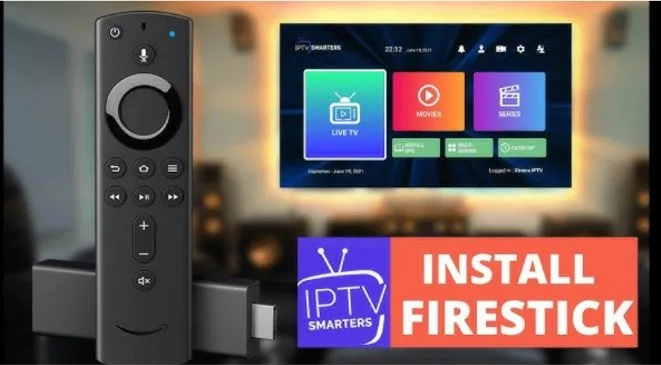
Imagine a world where your favorite shows, movies, and live TV channels are just a click away—without the endless cable bills or restricted content. If you’ve ever felt frustrated flipping through limited cable options, you’re not alone. Setting up IPTV on your Firestick can completely transform your TV experience, giving you instant access to global entertainment from the comfort of your home. This guide will walk you through everything you need to know, step by step, so you can start enjoying seamless streaming today.
What is IPTV and Why Choose Firestick?
Understanding IPTV
IPTV, or Internet Protocol Television, is a modern way of watching television through the internet. Unlike traditional cable, IPTV streams content via your internet connection, providing flexibility, on-demand viewing, and access to international channels. With IPTV, you can watch live TV, movies, and shows without being tied to expensive subscriptions.
Why Use Firestick for IPTV
Your Amazon Firestick is the perfect companion for IPTV. It’s portable, easy to use, and compatible with multiple IPTV apps. Whether you have a standard Firestick or a 4K version, you can stream content effortlessly. With the right setup, your Firestick turns into a gateway for unlimited entertainment.
Requirements Before Setting Up IPTV on Firestick
Hardware and Software Needed
Before diving in, make sure you have the essentials:
- Firestick device (any version will work)
- Stable internet connection (at least 10 Mbps recommended)
- IPTV subscription or M3U playlist link
- VPN (optional but highly recommended for security and bypassing geo-restrictions)
Security and Safety Precautions
To keep your Firestick safe and avoid malware:
- Enable “Apps from Unknown Sources” in your settings.
- Stick to reputable IPTV services rather than free or pirated sources.
- Use a VPN to protect your privacy and maintain a secure connection.
Step-by-Step Guide to Setup IPTV on Firestick
Step 1 – Prepare Your Firestick
- Turn on your Firestick and navigate to Settings → My Fire TV → Developer Options.
- Enable Apps from Unknown Sources to allow the installation of IPTV apps not available in the Amazon App Store.
Step 2 – Install an IPTV App
Popular apps for IPTV include:
- Kodi – highly customizable with add-ons.
- IPTV Smarters – user-friendly interface with EPG support.
- GSE Smart IPTV – supports multiple formats and playlists.
You can install these apps using the Downloader app on Firestick.
| IPTV App | Features | Ease of Use | Price |
| Kodi | Customizable add-ons, live TV | Medium | Free |
| IPTV Smarters | User-friendly, EPG, catch-up | High | Free/Paid |
| GSE Smart IPTV | Multi-format support, playlists | High | Free |
Step 3 – Add Your IPTV Subscription
- Open the IPTV app you installed.
- Enter your M3U playlist link or login credentials.
- Organize channels into categories if supported for easier navigation.
Step 4 – Customize Settings for Optimal Streaming
- Adjust video quality based on your internet speed to prevent buffering.
- Enable subtitles or closed captions if needed.
- Set parental controls for family-friendly viewing.
Step 5 – Test Your IPTV Setup
- Browse several channels and on-demand content to ensure everything works.
- Troubleshoot minor issues:
- Restart Firestick if channels aren’t loading.
- Clear cache from your IPTV app to enhance performance.
- Verify internet speed is adequate for streaming.
Tips to Enhance Your IPTV Experience on Firestick
- Use a high-speed Wi-Fi network for smoother streaming.
- Keep your IPTV app and Firestick software updated.
- Regularly refresh or re-add your M3U playlist to prevent downtime.
- Consider a VPN to access geo-restricted channels and protect privacy.
Common Issues and Troubleshooting
| Issue | Solution |
| Buffering | Reduce video quality, check internet connection |
| App crashes | Clear cache or reinstall the app |
| Channels not loading | Verify M3U link or contact IPTV provider |
With these quick fixes, most common issues can be resolved without frustration.
Frequently Asked Questions (FAQ)
How do I setup IPTV on Firestick?
Simply install a compatible IPTV app, add your subscription or M3U link, and adjust settings for the best experience.
Is IPTV legal on Firestick?
Yes, as long as you are using a licensed IPTV subscription. Avoid pirated sources to stay within the law.
Can I watch live TV on Firestick with IPTV?
Absolutely. You can stream live international channels, sports, and on-demand content with ease.
Do I need a VPN for IPTV on Firestick?
While not mandatory, a VPN is highly recommended for privacy, security, and bypassing geo-restrictions.
What are the best IPTV apps for Firestick?
Kodi, IPTV Smarters, and GSE Smart IPTV are the most popular and reliable options.
Conclusion – Start Your IPTV Journey Today
Setting up IPTV on your Firestick opens up a world of entertainment, giving you access to live channels, movies, and shows at your convenience. By following this step-by-step guide, you can enjoy a smooth, secure, and personalized streaming experience. Don’t let limited cable options hold you back—unlock the power of IPTV and take control of your TV today.
Call-to-Action:
Start your IPTV setup now and experience the freedom of unlimited entertainment. Share your setup success or favorite apps in the comments below!