





Imagine losing years of precious photos, critical work documents, or important system files in an instant—all because you didn’t have a backup. Data loss can happen to anyone, whether from hardware failure, malware, accidental deletion, or even theft. The good news? You don’t need to pay a fortune to protect your files.
In this guide, we’ll explore the best free backup utility and step-by-step setup tips to ensure your data stays safe—without breaking the bank. Let’s dive in!
Key Factors When Selecting a Free Backup Utility
When choosing a free backup utility, not all tools are created equal. The right software should offer essential features to ensure your data is secure, easily recoverable, and efficiently managed. Here’s what to prioritize:
- Multiple Backup Types
Choose software capable of performing diverse backup types. Beyond just files and folders, it should also allow you to create a system image, disk image or partition image.
- Scheduling and Automation
Manual backups are unreliable—you might forget to run them, leaving your data vulnerable. Look for a utility that supports:
- Custom scheduling (daily, weekly, or event triggers)
- Incremental backups (only saves changed files to save time and space)
- Storage Destination Options
A good backup tool should offer flexibility in where your data is stored:
- Local backups (external drives, NAS, or internal secondary disks)
- Cloud backups (Google Drive, Dropbox, OneDrive, or dedicated cloud storage)
- User-Friendly Interface
Even powerful software should be easy to navigate: one-click backups for beginners, advanced settings for power users, and clear recovery process (no confusing menus when restoring files).
- File Versioning
Versioning allows you to restore previous versions of a file—not just the most recent one. This is critical when you accidentally overwrite something or fall victim to ransomware.
- Performance and Reliability
Free doesn’t mean you should compromise on speed or safety. Choose a backup utility known for:
- Fast backup and restore speeds
- Minimal impact on system performance
- Reliable error handling and logs
When it comes to ticking all the right boxes for a free backup utility, AOMEI Backupper consistently rises to the top. Whether you’re backing up a single folder or your entire system, it offers the tools, flexibility, and reliability you need—without spending a cent.
How to Backup Windows OS Step by Step
Backing up your entire Windows operating system ensures you can recover from system crashes, hardware failure, or even ransomware attacks without reinstalling everything from scratch. With AOMEI Backupper, the process is fast and simple. Here’s how to back up your Windows OS in just a few clicks:
Step 1: Download and Install AOMEI Backupper
- Go to the official AOMEI website and download AOMEI Backupper.
- Install the software by following the on-screen instructions.
- Launch the program once the installation is complete.
Step 2: Choose the “System Backup” Option
- In the main interface, go to the “Backup” tab on the left.
- Select “System Backup”. The program will automatically detect and select the system partitions (usually C: drive and boot files).
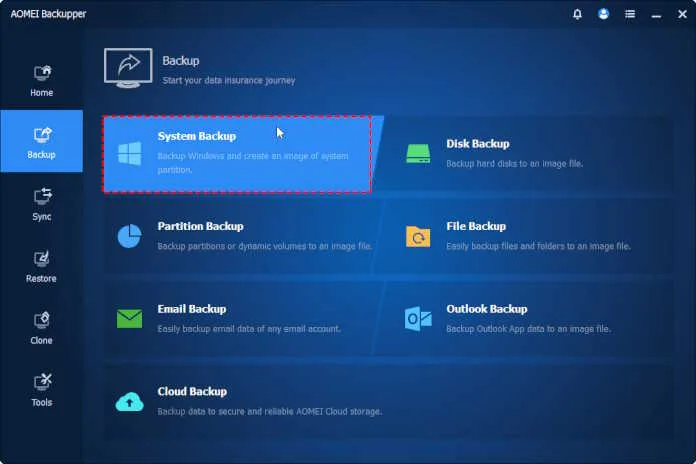
Step 3: Select a Destination to Store the Backup
Choose where you want to save the backup, such as external hard drive (recommended), USB flash drive, network drive (NAS), or second internal disk.
💡 Tip: Make sure your destination has enough free space to store the full system image.
Step 4: Configure Optional Settings
- Click “Schedule Backup” to set up automatic backups (daily, weekly, monthly).
- Click “Options” to set compression, email notifications, or enable sector-by-sector backup.
Step 5: Start the Backup
Click “Start Backup” to begin the process. Wait for the backup to complete. Duration depends on your system size and destination speed.
Bonus Tip: Create a Bootable Recovery Media
To be fully prepared for a system crash, you can also use AOMEI Backupper to create a bootable USB drive or CD/DVD:
- Go to the “Tools” tab > “Create Bootable Media”.
- Choose Windows PE (recommended).
- Follow the wizard to create a rescue media.
This lets you boot into AOMEI Backupper even if your PC won’t start and restore the system image.
Final Words
A reliable free backup utility is essential for protecting your data and ensuring quick recovery in case of system crashes, malware attacks, or accidental deletions. This article explains the key features to look for and how to back up your Windows OS quickly and safely with reliable Windows backup software – AOMEI Backupper. Just try it by yourself!